TG WG Flowseal
If you're familiar with these three words, then you're already an expert on the modern internet, but I've come up with something else...
Flowseal has already created a super-convenient proxy client for Windows, macOS, and Linux that can be deployed on OpenWRT, but there’s no version for iOS or Android (
So what was the solution?
TG WG could be deployed on OpenWRT, but we run into limitations with the router’s memory and performance. There’s a workaround: take an old laptop or leave your computer on and install the TG WG client there—which is exactly what I did...
Now, here’s a step-by-step guide
- Install TG WG from GitHub or a mirror
- Launch TG WG and access the settings via the icon in the system tray
- In the “IP Address” section, enter
0.0.0.0— this will make your device accessible on the local network. TG WG will prompt you to restart the proxy—agree - On Windows, the system will automatically ask for permission to access the local network—allow it. On other systems, you’ll most likely need to configure the firewall yourself.
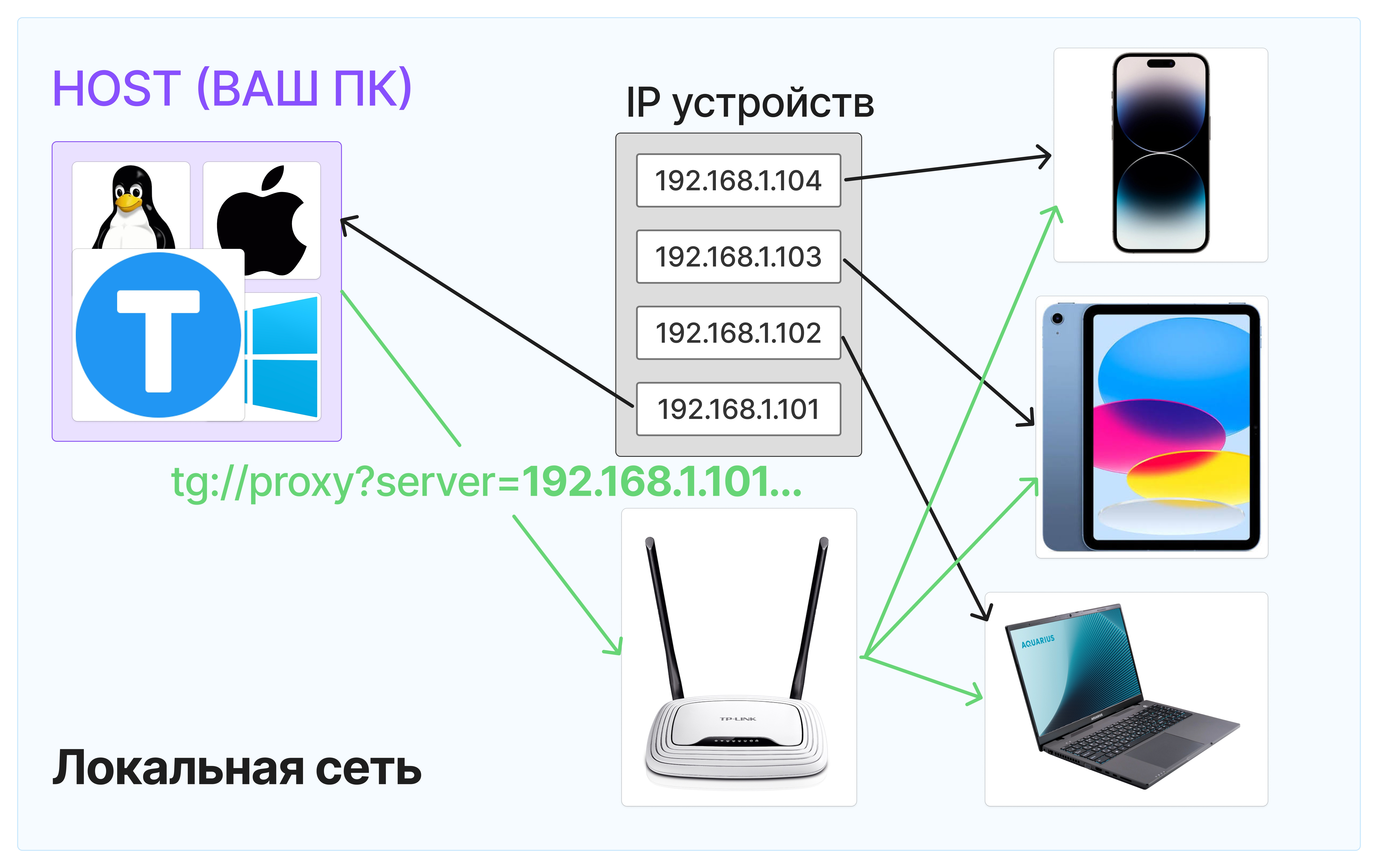
- Now, also via the TG WG icon in the system tray, open Telegram. In the window that opens, you’ll see a request to connect to a proxy with your IP address. Send this link to other users on your router’s local network so they can use Telegram
⚠️ DISCLAIMER When you reboot the router or the device running TG WG, the device’s IP address on the local network will most likely change. To prevent this, for example, on OpenWRT you can set a static IP based on the MAC address or update your device’s IP in the link each time
tg://proxy?server=<IP вашего устройства>
A brief diagram of how it works